Flova Logo

Your All-in-One Video Agent

AI Rap Video Generator for Music Videos You Direct

Give your track a visual identity, not a random sequence of effects. Flova AI rap video generator connects your audio reference, treatment, storyboard, generated scenes, and revisions. Direct Flova Agent through the setting, performance mood, and story, then review how the finished sequence works with your music.

Build a Music Video around Your Track and Artist

Build a Visual Treatment around the Track

Upload your track or explain the musical direction and visual goal. Flova AI rap video generator develops the idea into a treatment with an artist, location, mood, and recurring imagery, giving the song a clear visual starting point.

Create with Flova
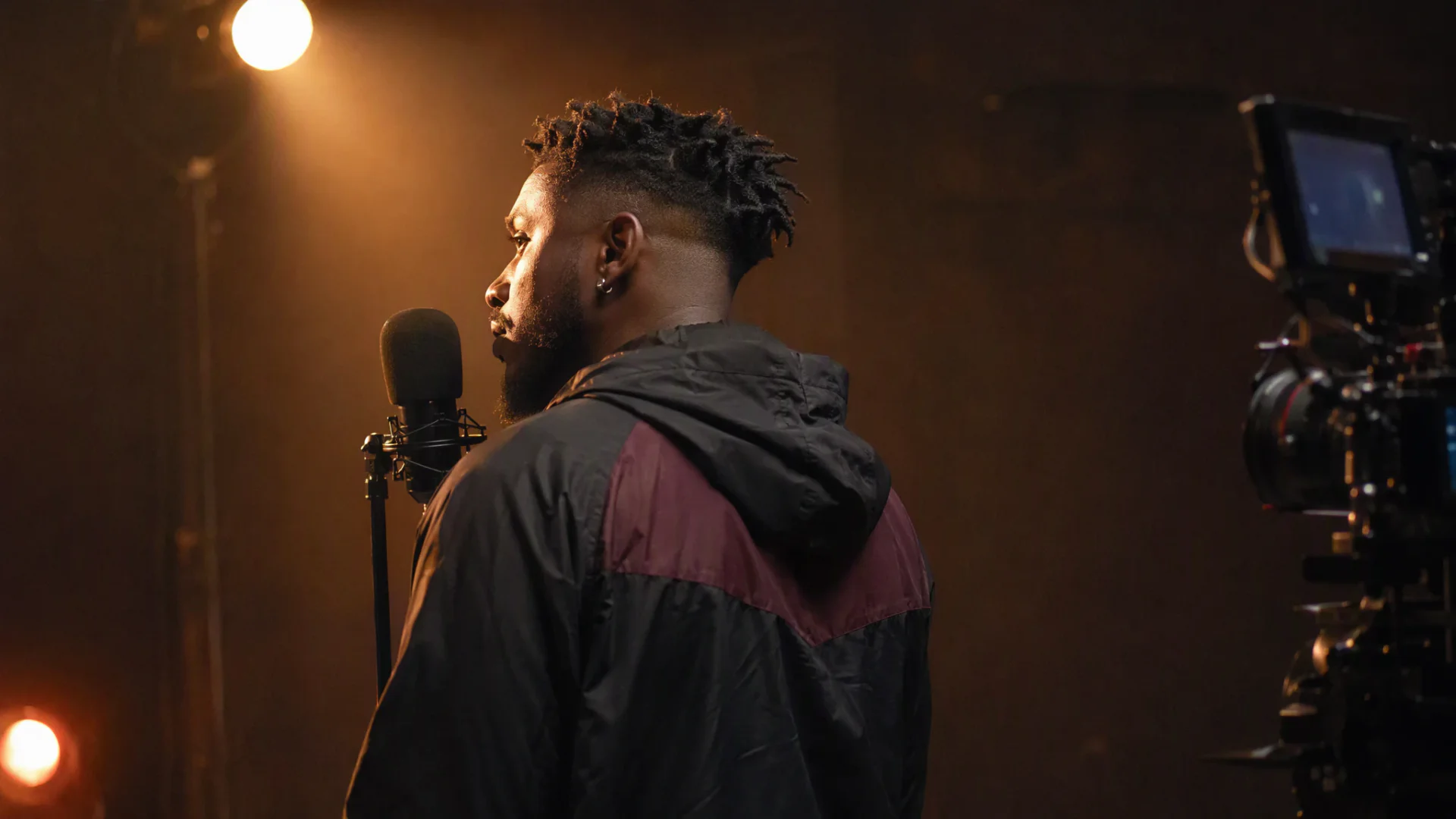
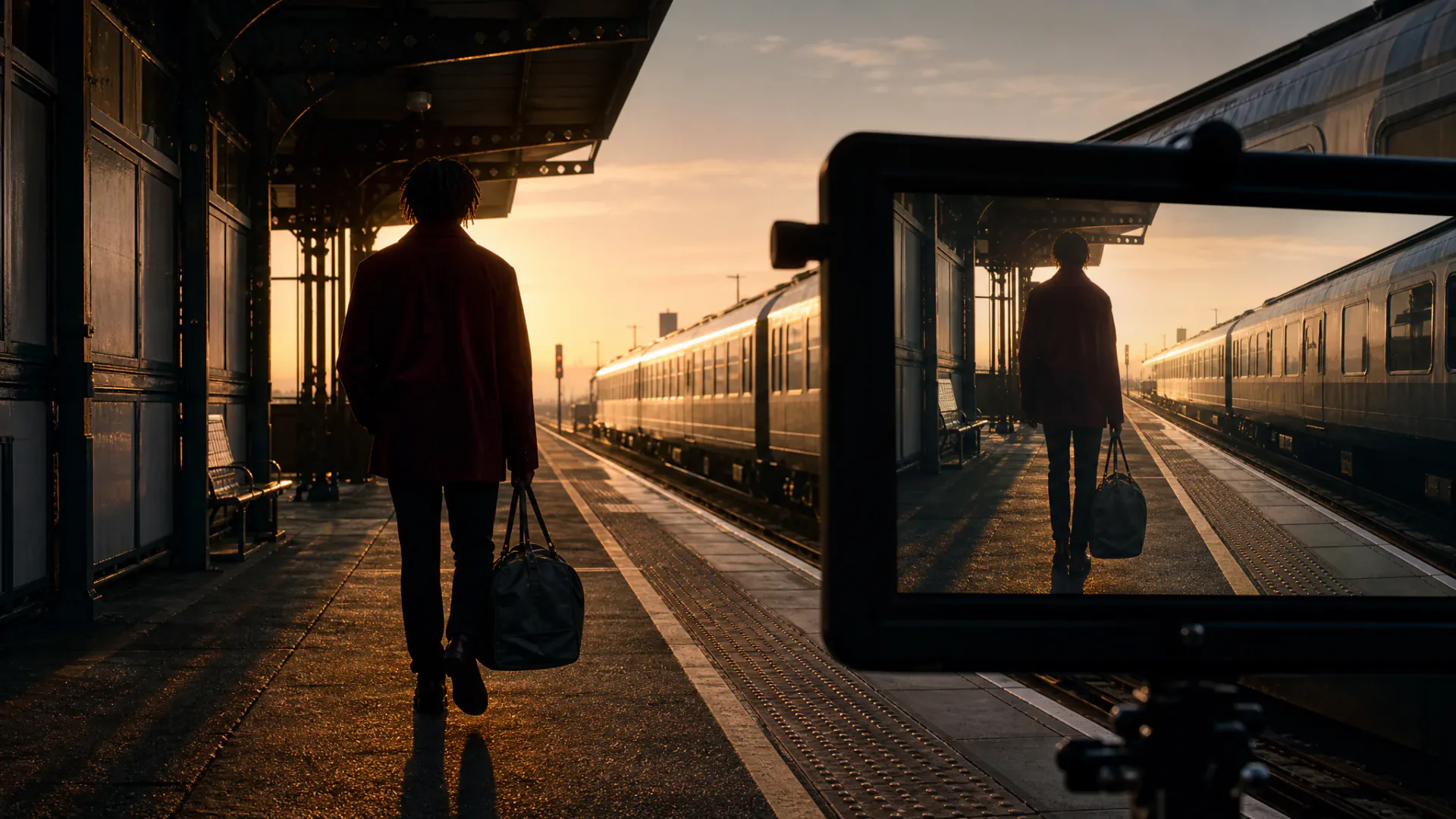
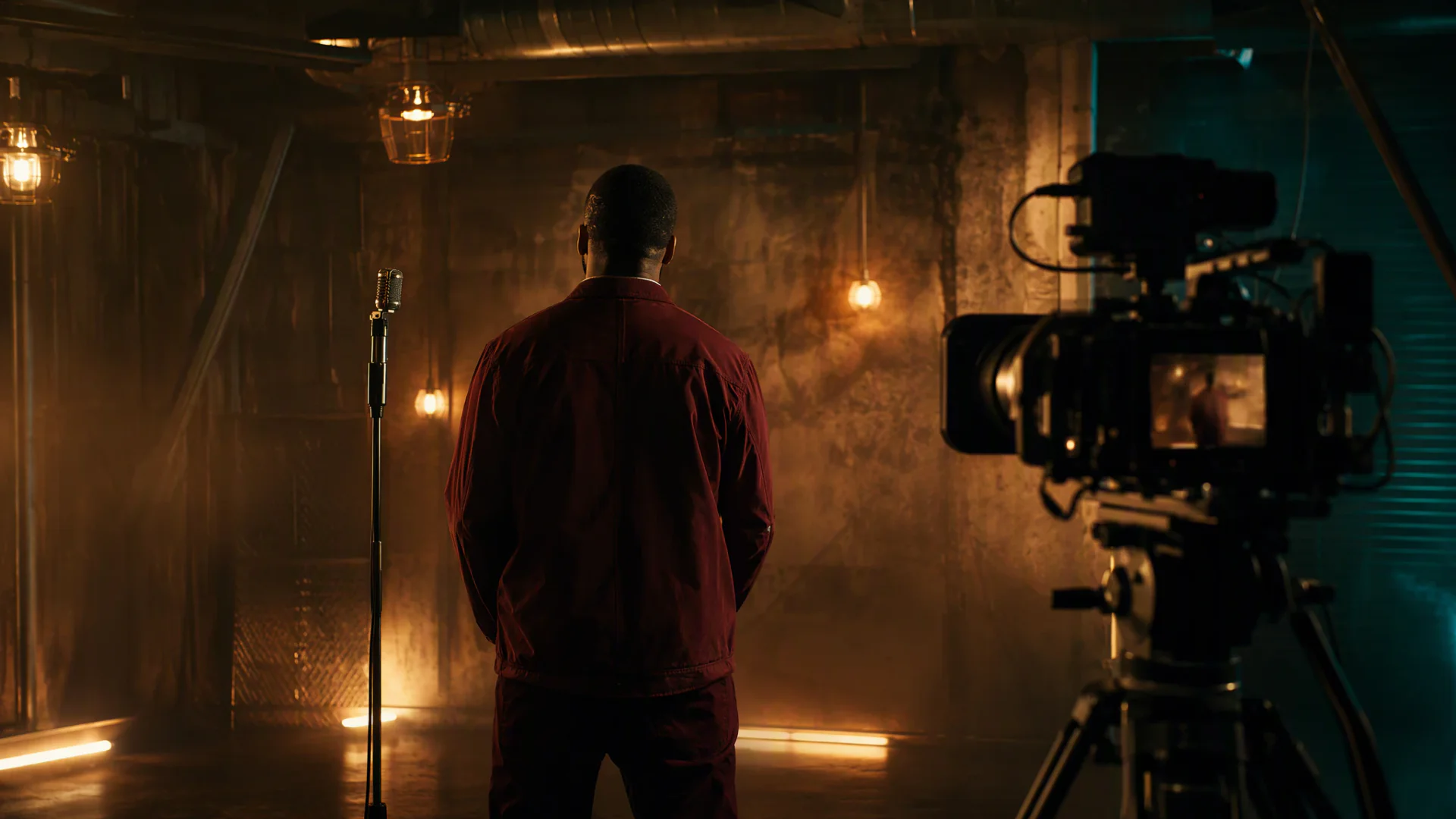
Original adult artist on an amber-lit industrial music-video set with a cinema camera

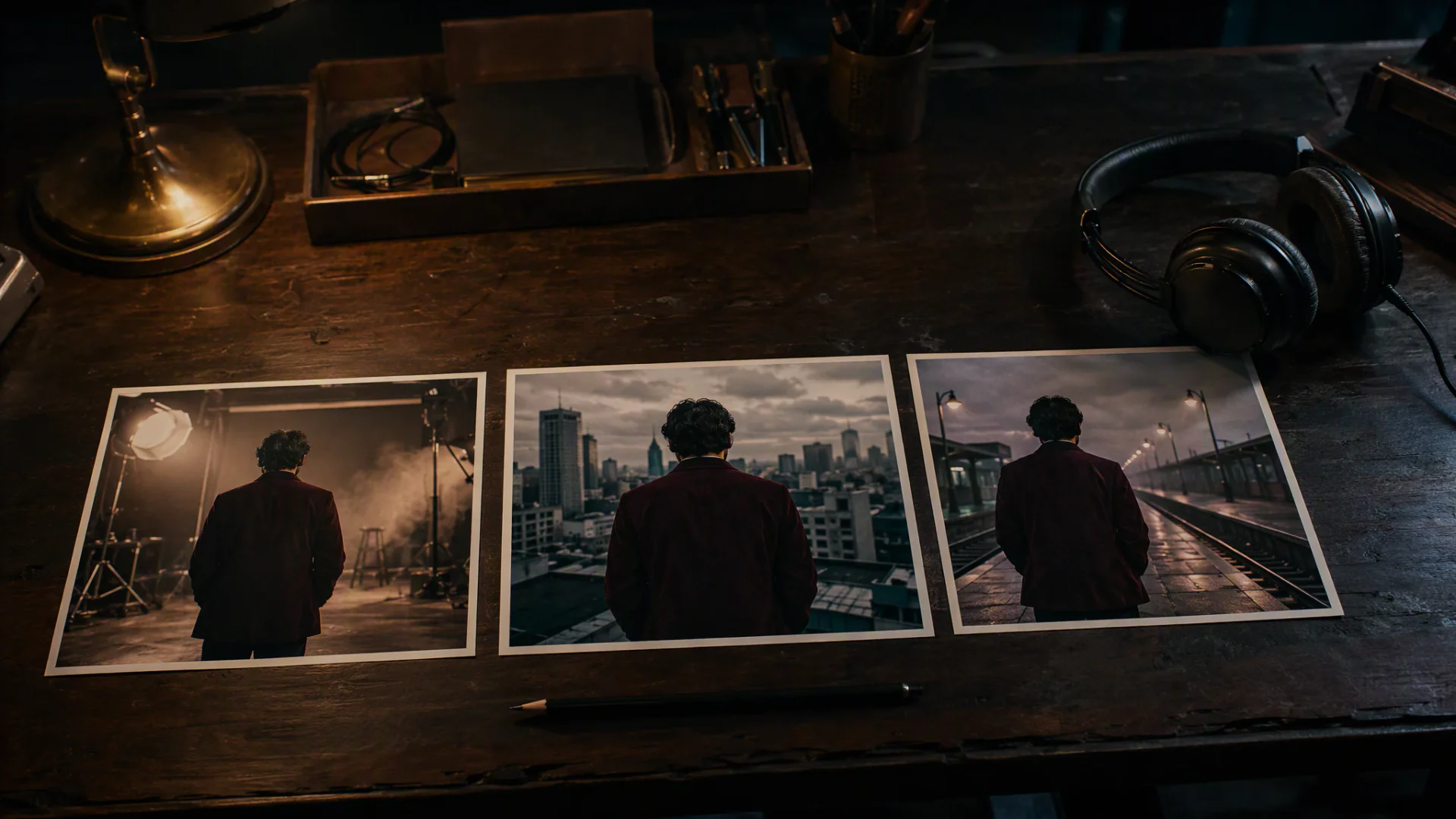
Plan Different Scenes for Verses and Hooks

Give verses and hooks different visual roles: introduce a setting, move the story forward, or return to a recurring image. A rap music video maker project connects those decisions through our script-to-screen filmmaking workflow.

Create with Flova
Printed studio, rooftop and railway-platform storyboard frames beside headphones

Carry the Artist’s Look across Shots

Use artist photos, outfit references, and scene notes to guide new shots. Our image-to-video workflow develops a reference still into a directed scene, keeping the visual starting point connected to the camera movement and action.

Create with Flova
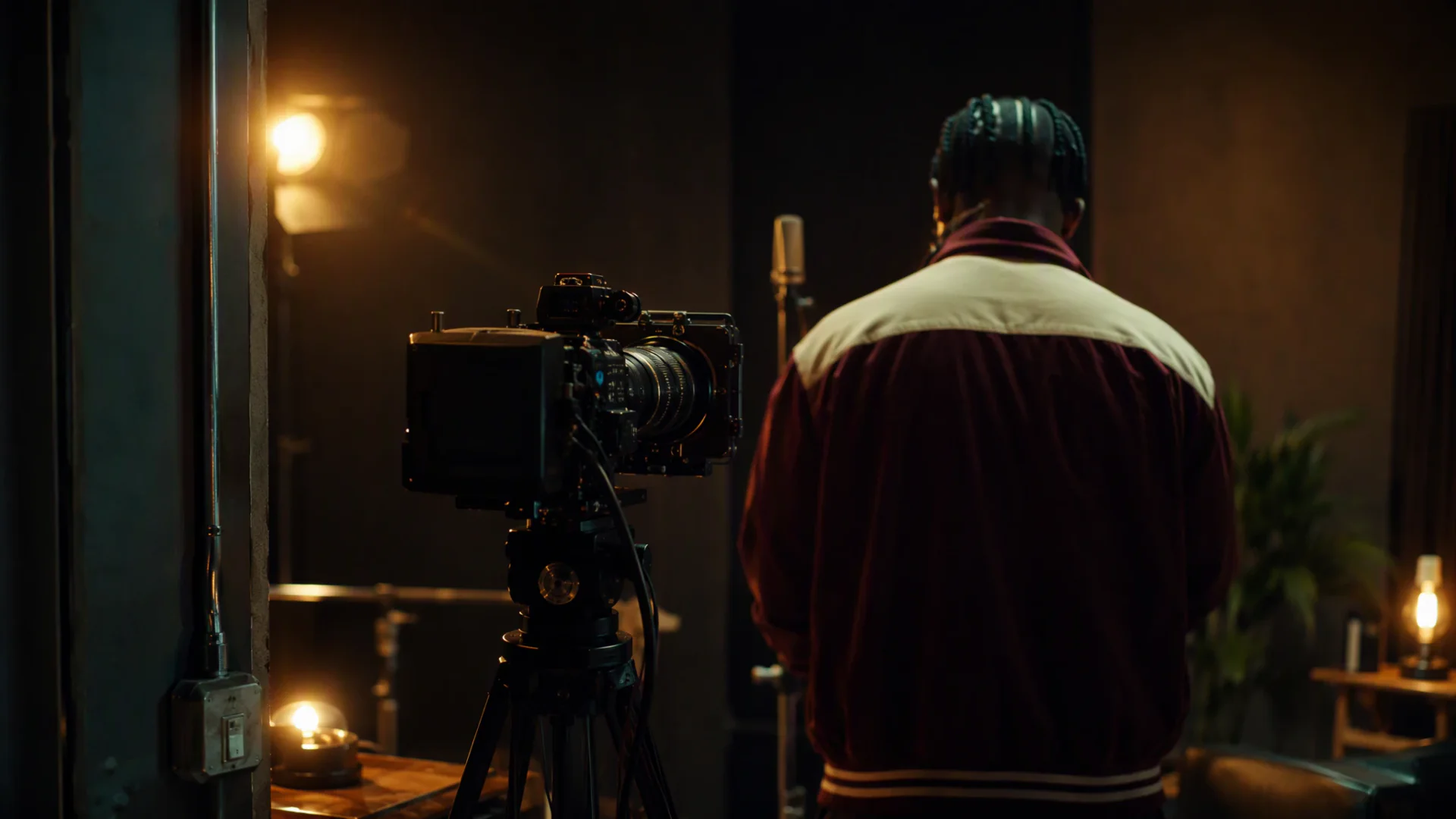
Back-view performer and matching jacket reference photograph on a brick-wall set

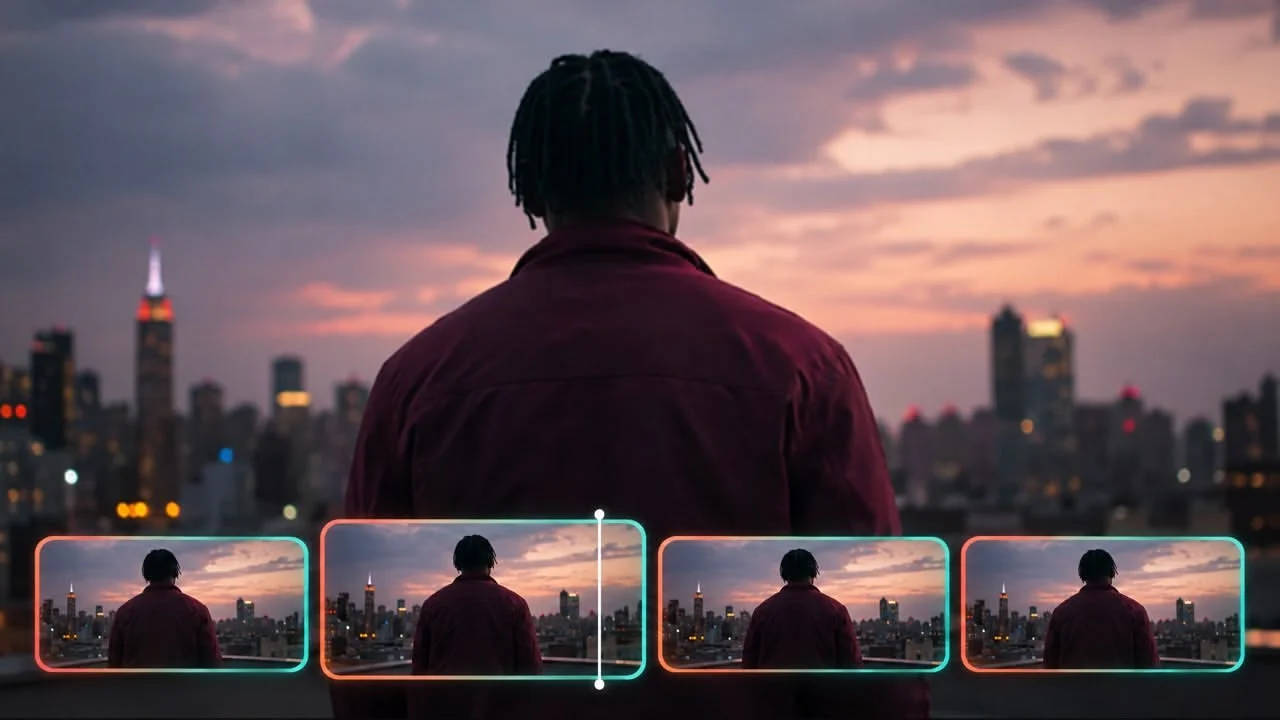
Edit Scenes around Your Rap Track

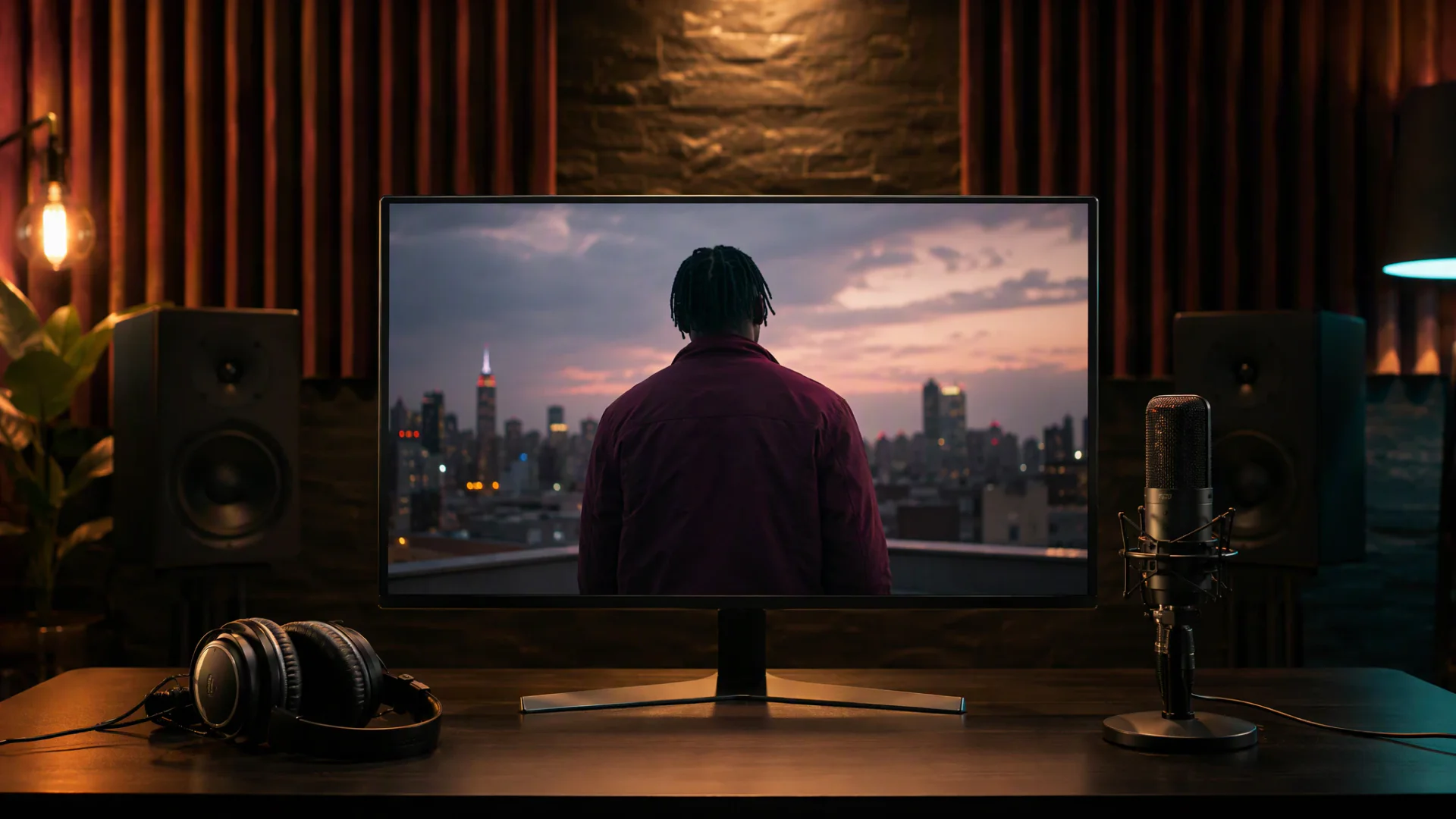
Arrange generated shots and your recording on the Edit timeline. Trim clips, change their order, split at a musical cue, and adjust audio volume. Shape the cut around the track’s pauses, phrases, and changes in energy.

Create with Flova
Headphones and microphone beside a monitor displaying a rooftop music-video scene

Keep Your Music-Video Direction Ready with Flova Skills

Use Flova Skills to revisit a creative method: a performance treatment, an animated world, or a shot-review process. Preserve the visual rules that matter while changing the song, setting, and story. A recurring release identity should help you develop new ideas, not repeat the same video.

Explore Flova Skills Explore Flova Skills

Rap Music Video Maker Directions for Different Releases

Different ideas need different structures. Choose a reveal, explanation, or visual story according to the message you want the viewer to remember.

Artist-Led Performance Videos

Create performance-led scenes around an artist’s references or an original character. Direct the setting, camera, and mood. For a visible vocal performance, use OmniHuman1.5 with one performer image and a speech or singing audio clip to drive the mouth movement.

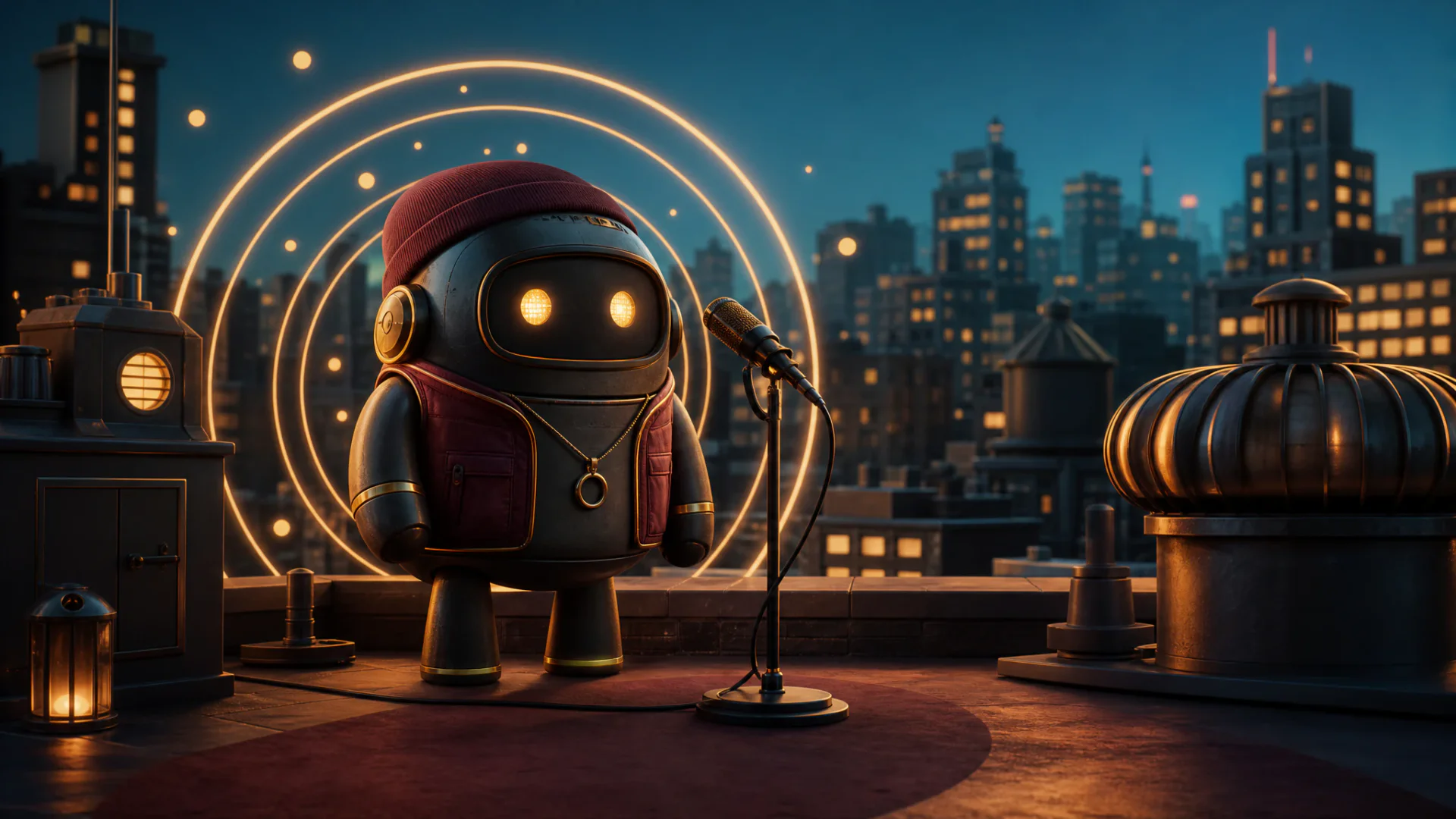
Original adult performer at a microphone on a small amber-lit music-video stage
Create with Flova

How to Use Flova AI Rap Video Generator

Start with the audience and the idea you want them to remember. Follow these four steps to plan your story, generate the scenes, and review the final cut.

  1. Share the Track and Creative Brief

    Upload authorized audio as a reference and explain the visual goal. Tell Flova AI rap video generator which moments matter, who appears, and what the viewer should remember. Add approved images when a recognizable artist, outfit, or setting is central.

  2. Approve the Treatment and Shot Plan

    Work with Flova Agent on the locations, performance approach, visual motifs, and scene order. Decide where the video needs development and where a recurring image should return. Review the storyboard before generating the main sequence.

  3. Generate Shots and Refine the Direction

    Develop the planned visuals in your AI rap video generator project. Compare each result with the brief and references. Ask for focused changes to the action, camera, outfit, background, or lighting while retaining material you already approve.

  4. Edit and Export Your Rap Music Video

    Add the selected scenes and your recording to an Edit. Trim and arrange clips around the musical phrases, adjust track volume, and preview the full sequence. Export the completed music video. Paid Personal plans include watermark-free export.

Create with Flova

Rap Video Maker Decisions That Give a Track Its Own World

Let the Track Choose the Visual World

A reflective verse can leave room for a restrained location and a recurring detail; an assertive hook may call for a closer camera or stronger change in light. Pick a few references that express those qualities, then develop an original treatment around them. Keep the palette, setting, and central image connected to what the song is saying.

Give a Recurring Hook a Visual Motif

A repeated hook can return to a location, gesture, or object while the verses show something new. This gives the video a recognizable structure without repeating the entire sequence. Decide what changes on each return—a camera distance, the character’s position, or the light—so the familiar image gains meaning as the track develops.

Use Audio-Driven Lip Sync for Vocal Shots

When the shot shows a performer speaking or singing, pair one performer image with one driving audio clip in OmniHuman1.5. The audio-driven image-to-video path supports 720p and 1080p output. Use this model-specific path for visible vocal performance, and use the Edit timeline separately to place that shot within the wider music-video sequence.

Make Timing Decisions on the Edit Timeline

A pause, a new vocal phrase, or a change in musical texture can give a cut its purpose. Place the recording beside the generated shots, trim their duration, and move each cut to the intended moment. Keep alternative timelines when you want to compare a slower narrative edit with a faster release version. This gives the music and the visual story a shared structure.

Frequently Asked Questions about Rap Video Creation

What is an AI rap video generator?

  • An AI rap video generator develops a music video from a track, visual brief, and references. Flova connects the treatment, storyboard, generated scenes, audio-driven performance options, and Edit timeline in one project.

Can I use an AI rap video generator with my own track?

  • Yes. Upload your recording and describe the visual direction. Use the track as the creative reference for the scenes, then arrange the recording and selected clips together in an Edit. Use music you own or have licensed.

How does a rap music video maker use artist photos?

  • Add artist and outfit references and describe which appearance details should guide the scene. Use them to develop the storyboard and generated shots, then retain the accepted material in the project for later scenes.

Can I use a rap video maker without filming myself?

  • Yes. Create original characters, animated worlds, narrative scenes, or visual metaphors. You can also use a performer image with an audio clip for an audio-driven vocal shot instead of recording a new live-action performance.

How do lip sync and music-video timing work?

  • For audio-driven lip sync, use OmniHuman1.5 with one performer image and one speech or singing audio clip; output is 720p or 1080p. For the full video, arrange and trim shots against the recording on the Edit timeline. These are separate controls.

Can I generate a song and add lyric subtitles?

  • You can generate a song from your lyrics with Suno 5 or Mureka 8, or use your own finished track. Flova does not directly deliver burned-in subtitles, subtitle tracks, or subtitle files; prepare on-screen lyrics in a separate subtitle tool.