

Getting Started Guide
Welcome to Flova. Describe the video you want to make in your own words, or upload a script, images, video, or audio as references. The Agent plans and carries out the steps that take your idea to a finished video.
Generate your first video
Open Flova and describe the scene you want in the input box on the homepage.
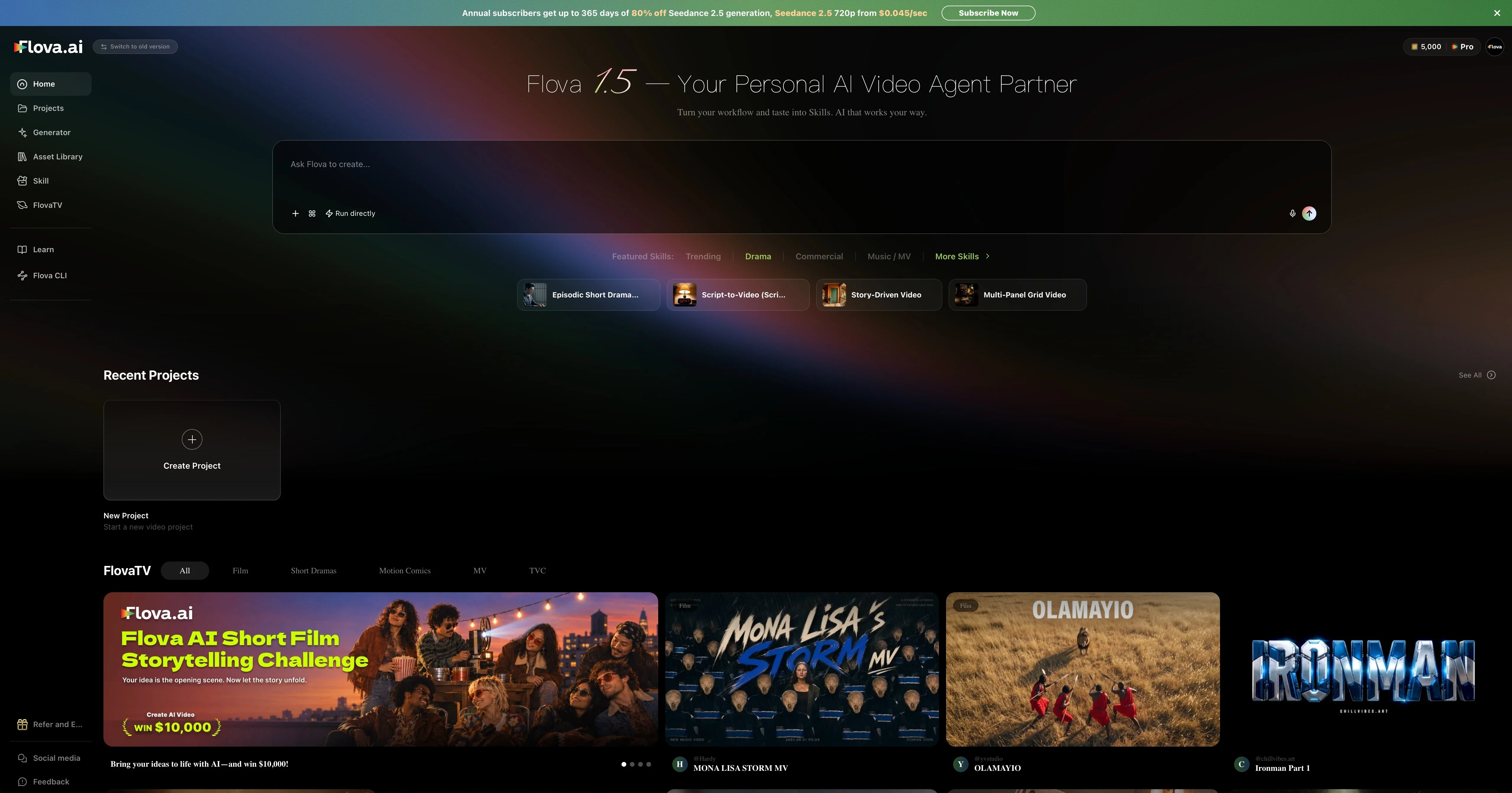
Try this Prompt:
Create a 5-second vertical video. In a late-night convenience store, an orange cat wearing a red knit hat pushes a miniature shopping cart down an aisle. Follow from a low camera angle, with warm cinematic lighting and no dialogue.When you send it, Flova creates a project and the Agent gets to work. It may start generating right away, or ask you to confirm the aspect ratio or creative direction first. Reply to any questions on the page.
The steps below show one recommended path. The Agent may adjust them to fit your goal and the media you already have, so your project may unfold differently.
When generation finishes, open the result and press play.
Your first video is ready.
Revise your first video
Stay in the same conversation and tell the Agent what you want to change. Asking for one clear set of changes at a time makes it easier to compare the results.
Keep the same orange cat and convenience store, but move the camera in front of the shopping cart and film back toward the cat. Make the cart move faster, with the aisle lights sweeping past on both sides.The Agent keeps the original result and generates a new version. Play both versions and choose the one you prefer. You can keep describing the differences you notice—for example, the movement is too slow, the camera is too far away, or the scene is too dark.
Add a reference image
If you have a specific character, product, or visual style in mind, send an image with instructions. Here, you can use a photo of your own cat as the reference for the convenience-store video.
- Click the + beside the input box.
- Upload an image, or choose one from the current project or asset library.
- Explain how to use the image, then send your message.
Use the coat pattern and body shape of the cat in this image to regenerate the convenience-store video. Have it wear the same red knit hat and push a miniature shopping cart. Keep the visual style unchanged.The image shows the Agent what to look at; your words explain which details to keep and what should happen next.
Turn the idea into a short film
When you like the direction, ask the Agent to expand it.
Expand this idea into a 15-second short film. Add two shots: the orange cat choosing a can of food and paying at the checkout. Keep the same cat and visual style. Show me the shot plan first, and wait for my confirmation before generating.The Agent creates the documents, resources, and edit needed for the task. You can confirm the direction in chat or open the project content to see what is ready. When the edit is assembled, play it and tell the Agent which shots need adjusting.
Export the video
Once the completed film plays as you expect, click Export at the top of the project. Select the video you want to export and submit the job. You can download it when the export finishes.
That's the core Flova workflow: describe a scene, review the result, refine what needs work, and export a version you're happy with.
Keep exploring
- To understand generation costs and subscriber benefits, read Subscriptions and Credits.
- To start your next project with an established creative method, learn how to Use and Share Skills.
- To choose a model, aspect ratio, and settings yourself, try Quick Generation.
- To assemble shots and adjust sound and pacing yourself, see Editing.