Soft colored light on a dark background
Flova Logo

Video Extender for Directed Scene Continuation

Build on a useful clip with a clearly directed next moment. Brief Flova with the source, intended action, and visual references. Confirm that your selected workflow supports source-video continuation before generating; a new reference-based shot is not automatically an extension of the original file.

Extend Video

Continue Your Clip from Its Last Useful Moment

An AI video extender is useful when the new action belongs to the existing scene. Flova keeps your source material, instructions, candidate media, and final edit connected; the generation options still depend on the selected workflow.

Bring the Source into the Brief

Add the source clip and identify where the useful action ends. Tell Flova Agent which subject, setting, and movement matter. Confirm input support before committing; do not assume that uploading a video enables every model to continue it.

Extend Video
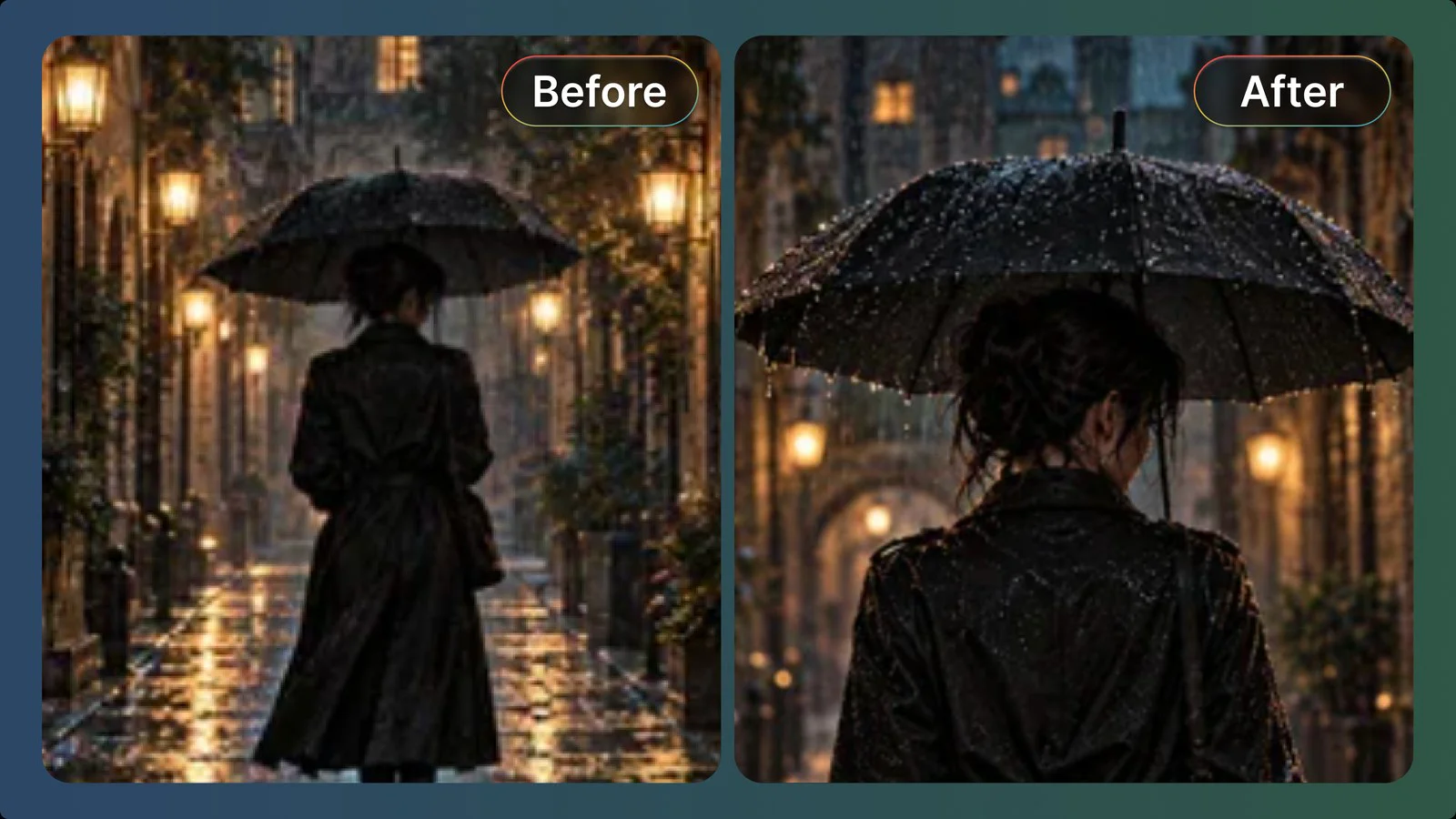
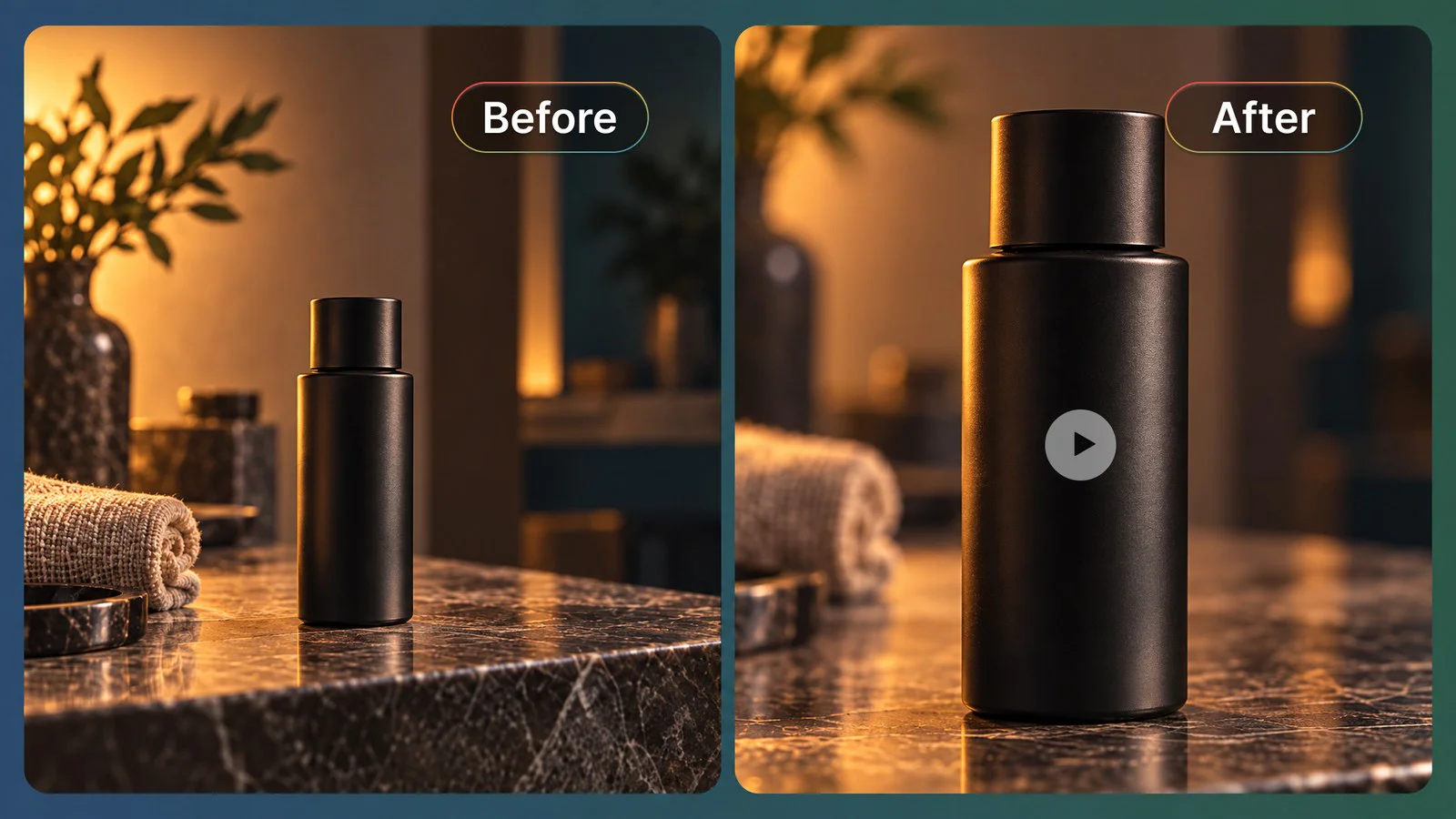
Source subject and setting maintained across a continued scene

Give the Next Moment a Clear Action

Describe a visible beat: the cyclist reaches the corner, the camera settles on the product, or the character completes a gesture. State how that beat follows the source. This gives the continuation a production purpose rather than simply asking for more seconds.

Extend Video
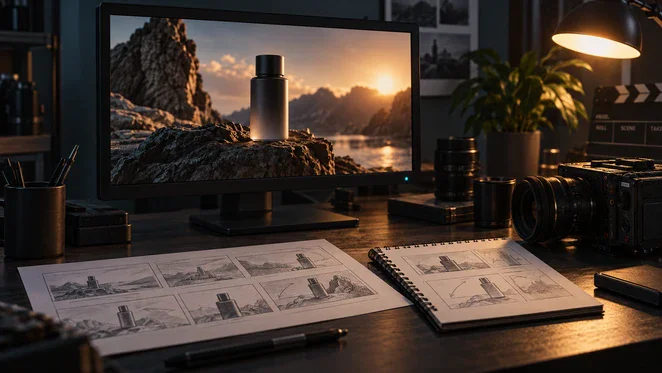
A clear next-action prompt for video continuation

Keep Candidate Versions Organized

Keep the source and generated candidates in Flova Assets. Compare different next actions without losing the approved starting material. A candidate is an option for the edit, not an automatic replacement for the clip you already selected.

Extend Video
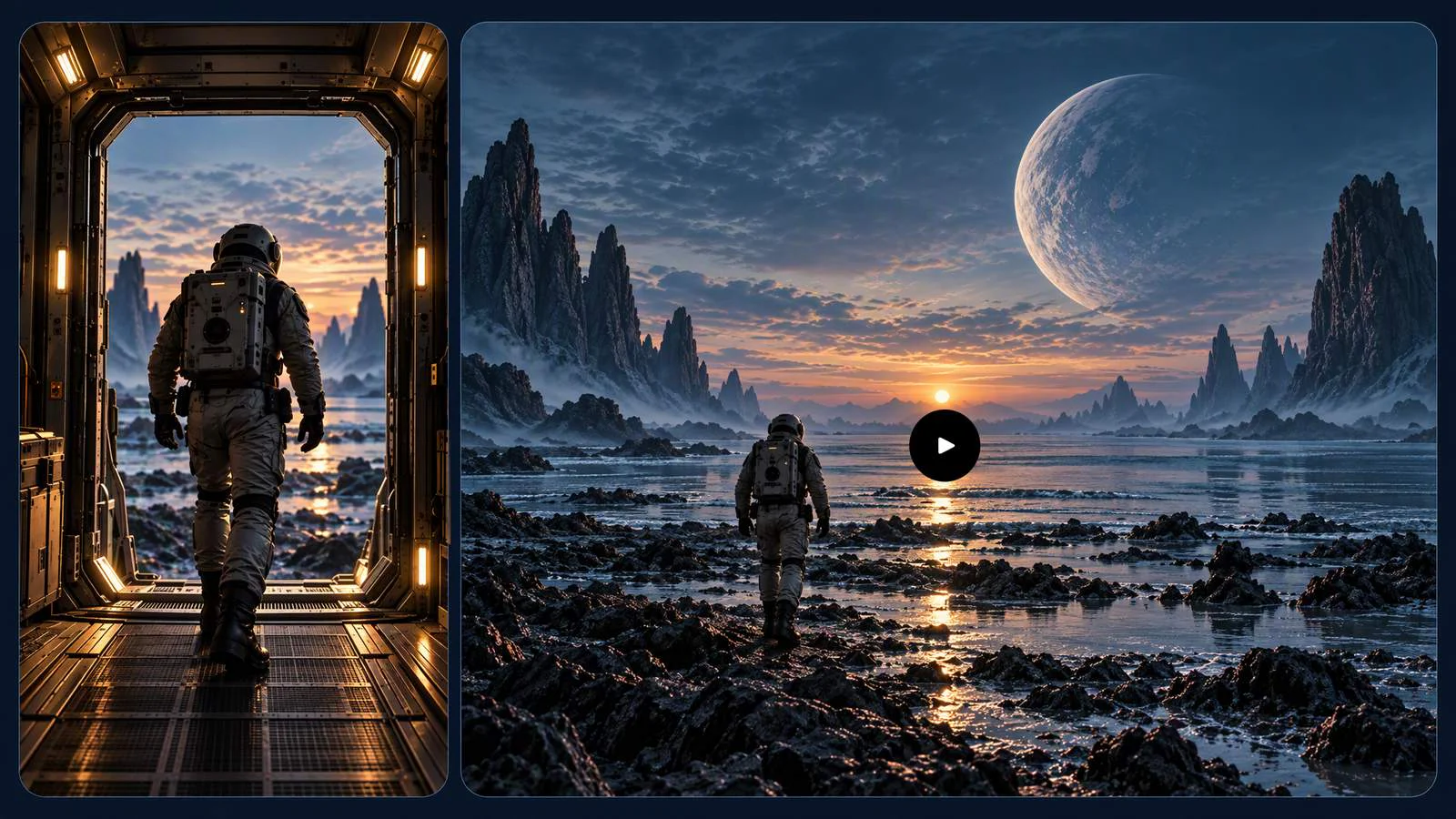
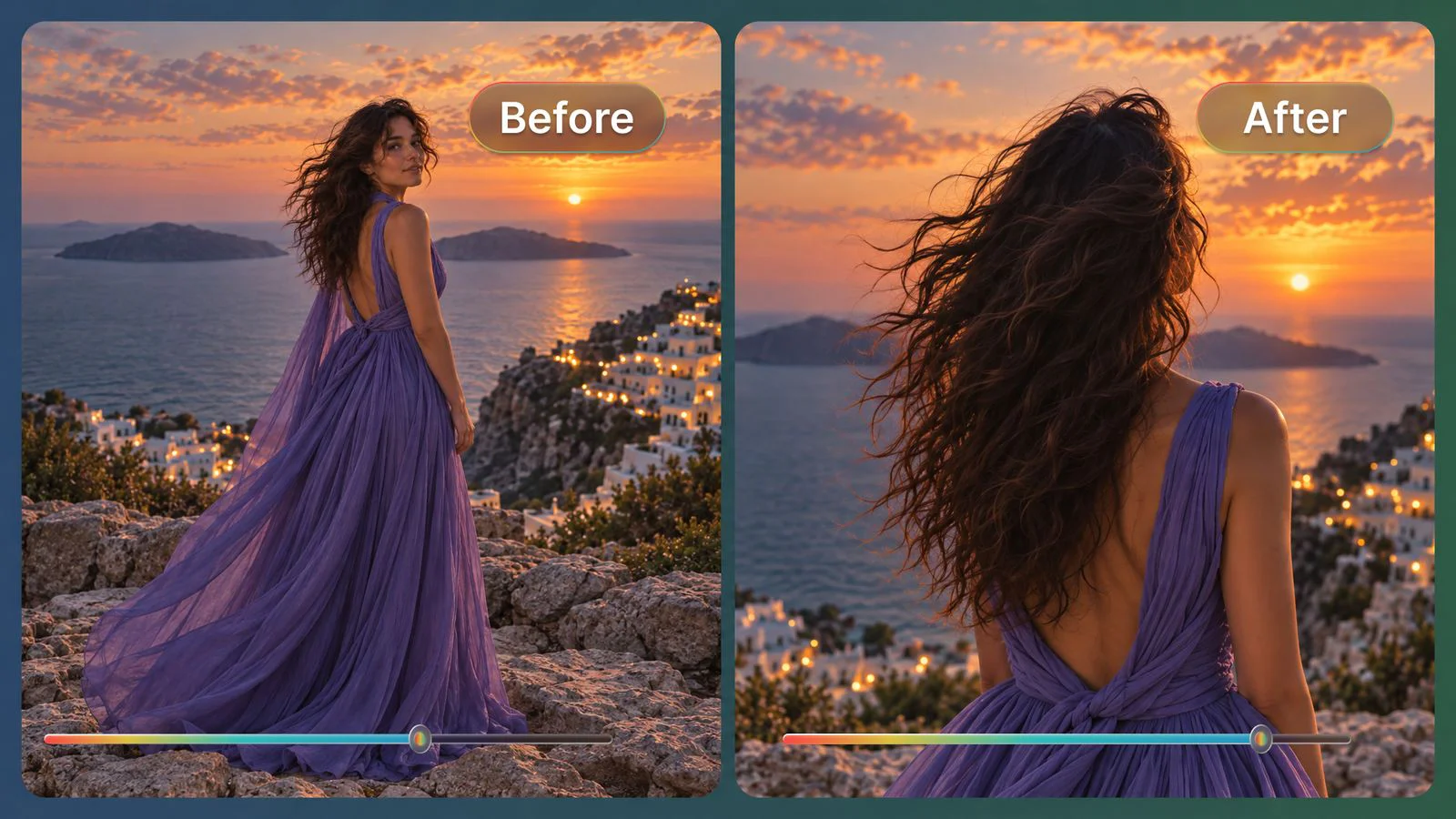
Original shot connecting to a continued camera movement

Assemble the Accepted Handoff

Place the approved source and continuation in Flova Edits. Adjust the cut and timing while watching them together. Editing can select a stronger handoff, but it cannot make an incorrect subject or impossible action accurate.

Extend Video
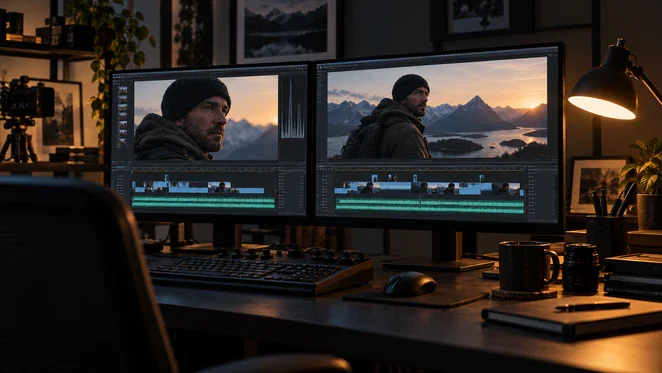
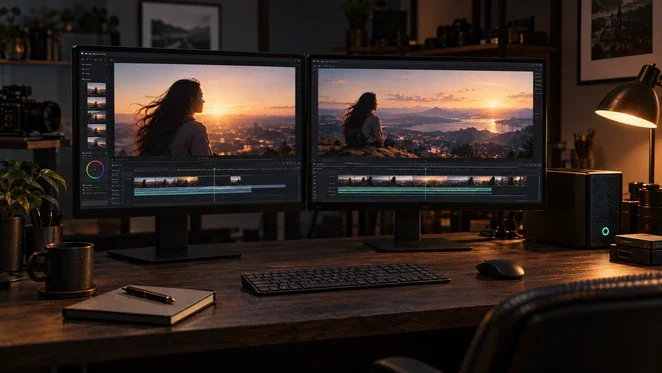
Generated continuation reviewed for continuity and editability

Create More Efficiently with Flova Skills

Build on your extended video with reusable Flova Skills. Choose a workflow for your next creative task and spend less time repeating setup, so you can focus on the finished video.

Explore Flova Skills Explore Flova Skills

Give the Existing Scene a Useful Next Beat

Choose the reason for adding footage before generating. Each use below has a different stopping point; a longer clip is not necessarily a more useful one.

Complete a Story Reaction

Continue a scene long enough for a glance, response, or small reveal to register. For multi-shot storytelling, the added beat should resolve the current moment or motivate the next cut rather than introduce an unrelated location.

Short film scene extended into its next story beat

How to Plan a Video Extension in Flova

  1. 1. Identify the Source and Endpoint

    Add your authorized source and note the action, framing, and last usable moment. Confirm whether the chosen workflow accepts the video for continuation. If it does not, choose a separately planned replacement shot or another supported method.

  2. 2. Describe One Next Beat

    State the next visible action, camera direction, and intended stopping point. Name the references that should guide identity and setting. Avoid asking for a new subject, new location, and new style in the same continuation.

  3. 3. Generate a Candidate with Supported Inputs

    Use the inputs and controls actually available in the selected workflow. Do not assume a universal extension duration or a before-the-source mode. If you generate from a still instead, identify the result as a separate reference-guided shot.

  4. 4. Approve the Cut and Export

    Play the source into the candidate. Choose a usable transition, assemble the final sequence, and follow the export workflow. Keep the source and the accepted edit so later changes do not depend on reproducing the same generation.

Extend Video

What to Consider When Extending a Video

Distinguish Continuation from Slow Motion or Repetition

Video extenders should be evaluated by what the added footage contributes. Repeating the last frames, slowing playback, and generating a new action are different operations. Decide whether the audience needs more time to observe the existing event or a genuinely new event after it. If a held frame or an earlier cut solves the problem, avoid generating a continuation merely to make the runtime longer. Keep the operation clear when briefing another editor.

Inspect the Boundary Before the Final Frame

Watch the handoff at normal speed before judging a dramatic ending. A small change in subject position, screen direction, or speed can make two attractive segments feel disconnected. Compare the final source frames with the first new frames, then watch the whole action. If a cutaway is needed to conceal a discontinuity, treat that as a new editing decision rather than describing the transition as seamless.

Separate Visual Identity from New Action

A recognizable jacket or product color does not establish that the movement is physically sensible. Check contact with the ground, the path of a hand, the position of a prop, and whether an action restarts unexpectedly. Simplify a complicated continuation into one observable beat. If the desired action depends on unseen product construction, use approved demonstration material instead of treating generated motion as evidence.

Change the Endpoint Before Rewriting Everything

A source that ends in blur, obstruction, or a cut may give the next segment an ambiguous starting point. Try an earlier usable endpoint before adding more instructions. Keep the original brief and change one factor at a time: endpoint, next action, camera movement, or reference. This makes it easier to see what improved the result and avoids introducing several new continuity problems while solving one.

Know When a Separate Shot Is Better

Use a new shot when the sequence needs a different angle, subject, or location rather than more of the same moment. Image-to-video generation can develop a reference-led insert, but it should not be labeled an exact continuation of the original clip. A cutaway or a planned new setup may communicate the idea more clearly than forcing an extension through a visually unstable boundary.

Extend Video

Video Extender FAQ

Can AI extend video without changing the subject?
  • You can specify the identity and visual details that matter, but generation can still introduce drift. Inspect the source-to-candidate boundary and the complete action. A matching first frame does not establish that the whole continuation remains consistent.
Does every Flova model extend an uploaded video?
  • Do not assume universal support. Check the selected workflow’s accepted inputs and available continuation controls. Using a clip as reference and extending that exact clip are different tasks; a source upload alone does not establish the latter.
Can I add footage before the original clip?
  • A lead-in is a separate requirement. Confirm that the selected workflow supports it before planning the edit. Otherwise create a new opening shot and join it in the sequence rather than describing forward continuation as reverse extension.
Is AI video extension the same as slowing a clip?
  • No. Slowing playback changes the timing of existing footage. A generative continuation attempts to add new visual events. Choose the method that matches whether you need more viewing time or another action.
Can I specify an exact number of extra seconds?
  • Include the intended runtime in the brief, then check the controls available for the selected workflow. Do not assume a fixed extension length across models. Review whether the usable action actually fills the requested time.
Can I continue a product demonstration?
  • Use approved references and real demonstration material when the action communicates a factual product capability. Generated motion can alter mechanisms or imply unsupported behavior. Choose another shot if the continuation cannot be verified.
What if the continuation still looks disconnected?
  • Try a clearer endpoint or a simpler next action. Compare one changed variable at a time. If the sequence needs a different setup, use a separate shot rather than repeatedly forcing the same handoff.

Finish the Scene, Not Just the Runtime

Bring the source clip, one next action, and a clear stopping point into Flova. Confirm workflow support, develop a candidate, and keep the part that improves the finished sequence.

Extend Video