At a Glance
The Best Free AI Image-to-Video Animation Apps in 2026 at a Glance
This guide covers five image-to-video animation tools with different documented workflows. The Quick Start Guide for Flova AI Video Creation walks you through creating a first video, adding image references, revising shots, and exporting the finished result. Flova is listed first for its Agent-led workflow, which connects storyboards, shot-level media, and timeline editing for multi-scene projects. Free access differs by tool: Pika uses credit packs, Runway and Flova Free downloads include watermarks, and commercial rights vary by plan.
Choose the app based on the workflow and source assets your project needs:
- Flova AI: an agent, storyboard, shot-binding, and timeline workflow for multi-scene projects. The official plan table lists 720p for Free, subject to account and product availability.
- Viggle AI: an uploaded character image can be animated with a motion template or a user-supplied reference video. Viggle describes its library as 8,000+ motion templates.
- Pika: a web-based Video Studio and iPhone app for model- and workflow-dependent image-to-video creation. Its current Free plan lists 0 monthly credits and credit packs.
- Kling AI: prompt-led image animation with camera controls and reference-video Motion Control.
- Runway ML: a creative-video platform whose Free plan offers limited exploration; its Gen-4.5 image-to-video workflow requires Standard or higher and is currently documented for the web.
Free access can differ in credits, watermark treatment, resolution, and commercial-use rights. Review the plan that applies to your account before starting a project.
What Free Access Means for AI Image-to-Video Apps
Free image-to-video access spans several offer types rather than a simple permanent-tier-versus-trial divide. A provider may offer a recurring daily or monthly allowance, a one-time sign-up allocation, a free account that relies on credit packs, or a time-limited trial of a paid plan. The terms can also differ by model, account, region, promotion, app version, and platform.
A free tier is an account level that can remain available without a subscription, but it does not necessarily provide recurring video-generation credits. Pika, for example, currently lists a $0 Free plan with 0 monthly credits and “packs only.” Viggle’s pricing page lists a limited daily video allowance, although official Viggle pages currently publish inconsistent daily quantities. Flova’s official referral guide describes a conditional referral reward rather than a general sign-up-credit offer: after generating an asset and unlocking a personal referral link, eligible users can earn 200 Credits for each of their first 20 referred sign-ups, with each credit batch valid for seven days.
A one-time allocation is available until spent but does not refill. Runway’s Free plan includes 125 one-time credits that do not expire and do not renew or refresh after use. That is different from a time-limited trial, but it is also not a recurring generation budget.
Credits and shared AI allowances are the usual metering systems. The amount used can change with the selected model, clip duration, resolution, reference inputs, and quality settings. Check the estimate shown in the product before generating instead of assuming that every render consumes the same amount.
Watermark status needs provider- and plan-specific language. Pika’s current pricing page lists no watermark on Free, while older help material uses retired plan wording. Runway explicitly says all Free-plan videos carry a watermark. Flova reserves watermark-free export for eligible paid plans, and Free final downloads carry a Flova watermark. Viggle’s reviewed official pages conflict, so its Free exports should not be promised as either watermarked or watermark-free without an account-level check.
Resolution and duration are also model-specific. A listed plan resolution is not a universal promise for every model or device. Free access can also exclude commercial rights: Pika’s Free plan does not include a commercial license, and Flova’s terms restrict commercial use of outputs created during a period without a subscription that explicitly permits it.
How to Compare Free Image-to-Video Apps
Use provider product pages, pricing details, help documentation, and terms to compare workflows, plan options, and commercial-use rights. Start with your project brief, then test the workflows that fit your assets and delivery requirements.
Start with the workflow and assets you have, then compare credits, watermarks, resolution, platform access, and commercial-use rights for the plan you intend to use.
For a production-ready choice, use the same approved still image and a concise motion brief to assess visual quality, motion, and revision effort in each shortlisted workflow. Review faces, product details, text, reflections, edges, proportions, backgrounds, and camera consistency before final delivery.
Check the specific web or mobile workflow you plan to use. Available features, models, and plan benefits can differ across platforms and accounts.
How AI Image-to-Video Animation Works (in Plain English)
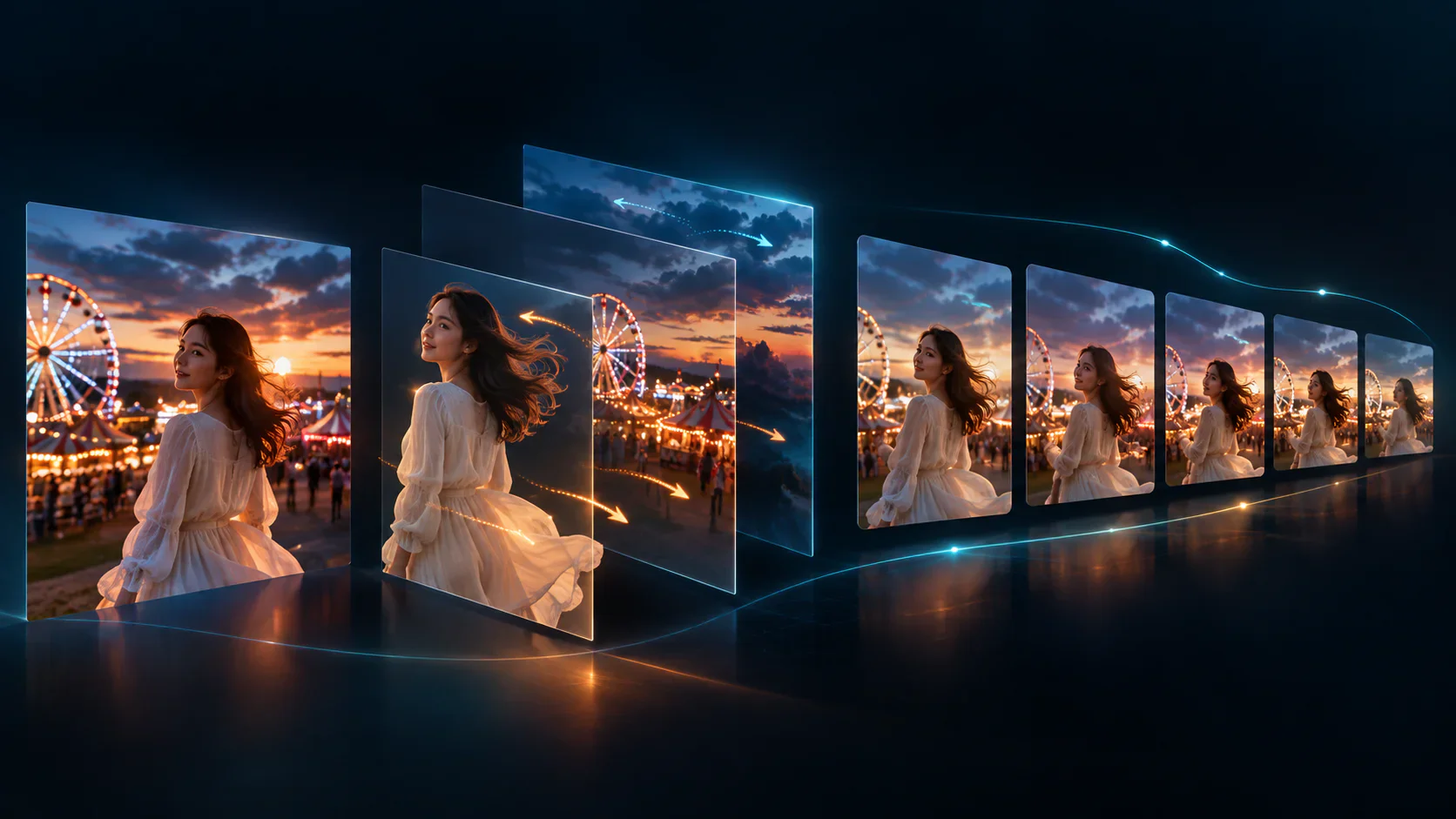
AI video generator from picture starts with a still image and, in many workflows, a text instruction, motion template, reference video, camera control, or audio input. The model creates a sequence of new frames intended to depict motion over time. The result is commonly a short clip, but available duration depends on the selected tool and model.
The model uses patterns it learned during training to interpret visible structure in the source image, such as a subject, background, boundaries, pose, lighting, and depth cues. It then generates successive frames that are consistent with the source and the requested action as far as the model can manage.
The original still image contains no hidden motion recording for the system to play back. Intermediate frames are generated from learned patterns, so the result is a synthetic prediction rather than a factual record of what happened. That distinction is why results can depart from a source image or show visual inconsistencies.
Generation is typically metered through credits or an AI allowance, not a published quantity of GPU time. Longer clips, higher resolution, selected models, and additional settings can require more allowance. Providers can change those rules, so the pre-generation estimate and live plan page are the most useful checks.
The Best Free AI Image-to-Video Animation Apps in 2026 by Workflow
These five apps support different image-to-video workflows. Flova comes first for its connected multi-scene process—from planning and storyboards to shot-level media binding and timeline assembly.
1. Flova AI
Flova supports an agent-led workflow for planning multi-scene projects, creating a storyboard, linking media to individual shots, and assembling shots on a timeline. Reusable character and scene references help teams carry approved visual direction across shots. Review generated shots before final export. Flova’s Kling 4.0 model page introduces the upcoming model’s image-reference, camera-motion, and multi-shot workflow.
New accounts can receive up to 300 credits: 100 available immediately and a 200-credit creation bonus. Credit use depends on the model and settings selected for each generation.
Flova's Free plan supports 720p video, and Free final downloads include a Flova watermark. Eligible paid plans offer watermark-free export and commercial-use rights. Seedance 2.5 supports clips up to 30 seconds in eligible workflows. Visit your account page to see the current models, credits, and plan options available to you.
Flova is built for browser-based creation and includes a CLI for supported workflows. Choose an eligible paid plan when a campaign needs watermark-free export or commercial-use rights.
Best for: marketers and creators who need connected planning, storyboards, shot-level media, and timeline assembly across multiple scenes.
2. Viggle AI
Viggle AI lets a user upload a character image and apply motion from a template or an uploaded reference video. Viggle describes this workflow as full-body motion animation and currently advertises 8,000+ motion templates. That makes it a documented option for projects that begin with a character image and a specific motion reference.
Viggle has Free, Pro, Live, and Max tiers. Its current pricing page lists Free at $0, 0 monthly credits, one concurrent generation, seven-day asset storage, and a limited daily video allowance. The published daily quantity is not fully consistent across Viggle's official pages, so a permanent quota should not be assumed.
Watermark treatment on Viggle Free exports requires a current account-level check. Its pricing table explicitly lists 'No watermark' for paid Pro, Live, and Max plans, while other official material gives conflicting Free-export wording. No verified universal Free resolution ceiling is stated in the reviewed first-party material. Viggle is available through a web interface and official iOS and Android apps; the linked Discord presence is a community, not verified here as a generation interface.
Best for: creators who want a documented character-image workflow based on a large template library or their own motion-reference clip. Confirm current watermark, allowance, and export settings before planning direct publication.
3. Pika
Pika offers a web-based Video Studio and an official iPhone app. Its current consumer Free plan is listed at $0 per month with 0 monthly credits and 'packs only,' so it should not be described as a recurring free-credit plan.
The current Pika pricing page lists No watermark for the Free plan. That plan does not include a commercial license. Pika's terms restrict use to personal, noncommercial purposes unless a plan expressly permits commercial use, so an unwatermarked Free export is not by itself permission to use the output in marketing or paid work.
Output settings depend on the model and workflow. For example, Pika's Seedance 2.5 image-to-video API documents MP4 and MOV outputs, 480p, 720p, and 1080p settings, and 4- to 30-second durations; those model-specific API settings should not be presented as a universal cap or promise for the consumer web or iPhone product. An official Android consumer-video app was not verified in this review.
Best for: readers who want to examine Pika's model-specific image-to-video options and can use the current packs-only Free plan for personal, noncommercial experimentation. Check the live pricing page and the selected workflow before generating.
4. Kling AI
Kling supports image-to-video generation guided by prompts for subject and background motion. Its official guides also document six basic camera controls and reference-video Motion Control for one image character. Those controls make it relevant to a workflow that needs directed camera movement or a supplied motion reference.
Kling uses credits. Current subscriber plans list daily free credits, but the reviewed material does not establish a fixed daily refresh or a universal daily amount for every Basic/free account. Activity-linked or promotional login credits can change, so readers should confirm the live plan page in their account.
Kling VIDEO 3.0 documents 720p and 1080p modes. The current membership matrix presents 1080p/4K video generation, brand-watermark removal, and commercial use as paid-membership benefits; it does not support a universal Basic/free-resolution promise. Non-members should not treat exports as watermark-free: Kling reserves brand-watermark removal for membership and its terms may require retention of a brand watermark or a prominent Kling-generated disclosure. Required AI-content labels or metadata can remain even when a paid plan removes a brand watermark.
Best for: readers evaluating prompt-led image animation, camera controls, and reference-video Motion Control. Test the intended action and review current export terms, especially for fast or complex movement, commercial use, and watermark treatment.
5. Runway ML
Runway offers a web platform and official iPhone and Android apps. Its help documentation recommends a desktop or laptop for the full experience. Runway's Gen-4.5 documentation currently lists Web as that model's platform, so a general mobile-app claim should not be read as Gen-4.5 feature parity on mobile.
Runway's Free plan includes 125 one-time credits for a limited selection of tools. The credits do not expire, but they do not renew or refresh after they are spent. All videos generated on the Free plan carry a Runway watermark, which makes the plan best treated as an evaluation route when the planned distribution cannot accept that branding.
Gen-4.5 requires Standard or higher. On those plans, it supports image-to-video and text-to-video clips from 2 to 10 seconds at 720p. Runway says it does not restrict commercial use of outputs, subject to its Terms of Use and Usage Policy; that statement is not a guarantee of rights in a user's input, third-party material, or resulting output.
Best for: readers who want to evaluate Runway's documented web-based Gen-4.5 image-to-video workflow before choosing a paid plan. Free-plan watermarks and tool eligibility should be checked before a client or public-distribution project.
Free AI Image-to-Video Apps Compared: Free Tiers, Watermarks & Resolution
Compare each app by its workflow, free access, watermark treatment, resolution options, and commercial-use rights.
Free-plan watermarks and commercial-use rights vary by provider. Pika lists no watermark on Free but excludes commercial use; Viggle’s Free-watermark information varies across its current pages. Flova’s current plan comparison lists watermark-free export as a paid-plan benefit, while Runway Free exports are watermarked and Kling offers brand-watermark removal with paid membership.
Getting Better Image-to-Video Quality and Motion
Image-to-video results depend on the selected model, source image, prompt, motion, and settings. Generate the same approved still image with a concise motion brief in each shortlisted workflow, then review the full output at the intended delivery size.
Flova AI
Flova keeps character and scene definitions, reusable visual references, and adjacent-shot context connected across a project. This gives each shot a shared creative foundation instead of relying on the same text prompt alone. Review each generated shot before final export to keep characters, environments, and motion aligned with the project.
Character consistency: Treat recurring characters as key storyboard elements. Define visible traits such as facial features, hairstyle, body type, and clothing, then reuse approved character reference images in the relevant shots. This helps reduce face-swapping effects and styling drift across the sequence.
Scene and spatial consistency: Reuse the same scene setup and visual references whenever possible. When adjacent shots need to connect, use the neighboring shot’s first frame, last frame, or source video as a reference when supported by the selected model and generation mode. This can help carry forward the environment, lighting, subject position, and action state.
Practical setup: Finalize satisfactory character and scene references before expanding the sequence. If details such as door or window placement, camera side, or actor blocking must remain unchanged, state those constraints explicitly and provide reference images that clearly show the required spatial relationships.
Quality consistency across source footage: When a sequence combines archive clips, creator footage, product video, or generated scenes at different resolutions, use Flova’s AI video upscaler to prepare lower-resolution footage for the target delivery format. Keeping the enhanced clip in the same project makes it easier to compare it with adjacent shots and reduce distracting quality gaps. Upscaling can improve perceived clarity and reduce some compression artifacts, but it cannot recover details that were never captured. Review faces, product labels, text, textures, and fast movement at full size before export.
Kling AI
Kling documents prompt-led subject and background motion, camera controls, and reference-video Motion Control. Its own guidance identifies complex physics and fast or complex movement as areas that can be less reliable. Review the intended action, subject proportions, contact with the ground, and background stability rather than assuming realistic motion from a provider description.
Runway ML
Runway documents image-to-video capability for Gen-4.5 on Standard and higher plans, with 2- to 10-second 720p clips. The documentation establishes model access and settings, not an objective claim that a particular clip will be artifact-free or superior to another provider. Check the selected model, account eligibility, and export before evaluating a creative brief.
Pika
Pika’s output controls vary by product surface and selected model. Its Seedance 2.5 API documentation gives a concrete example of selectable output formats, resolution, and duration, but it does not prove a single quality outcome for all Pika workflows. Inspect faces, text, fine edges, reflections, and any fast motion in a test appropriate to the planned use.
Viggle AI
Viggle describes template- and reference-video-driven full-body character animation. A template can provide a more explicit motion source than an open-ended prompt, but its documentation does not independently establish how every character, pose, costume, or background will render. Test a representative source image and the exact template or reference clip before committing to volume production.
Platform Availability: Best Free Options for Web, Android, iOS and Desktop
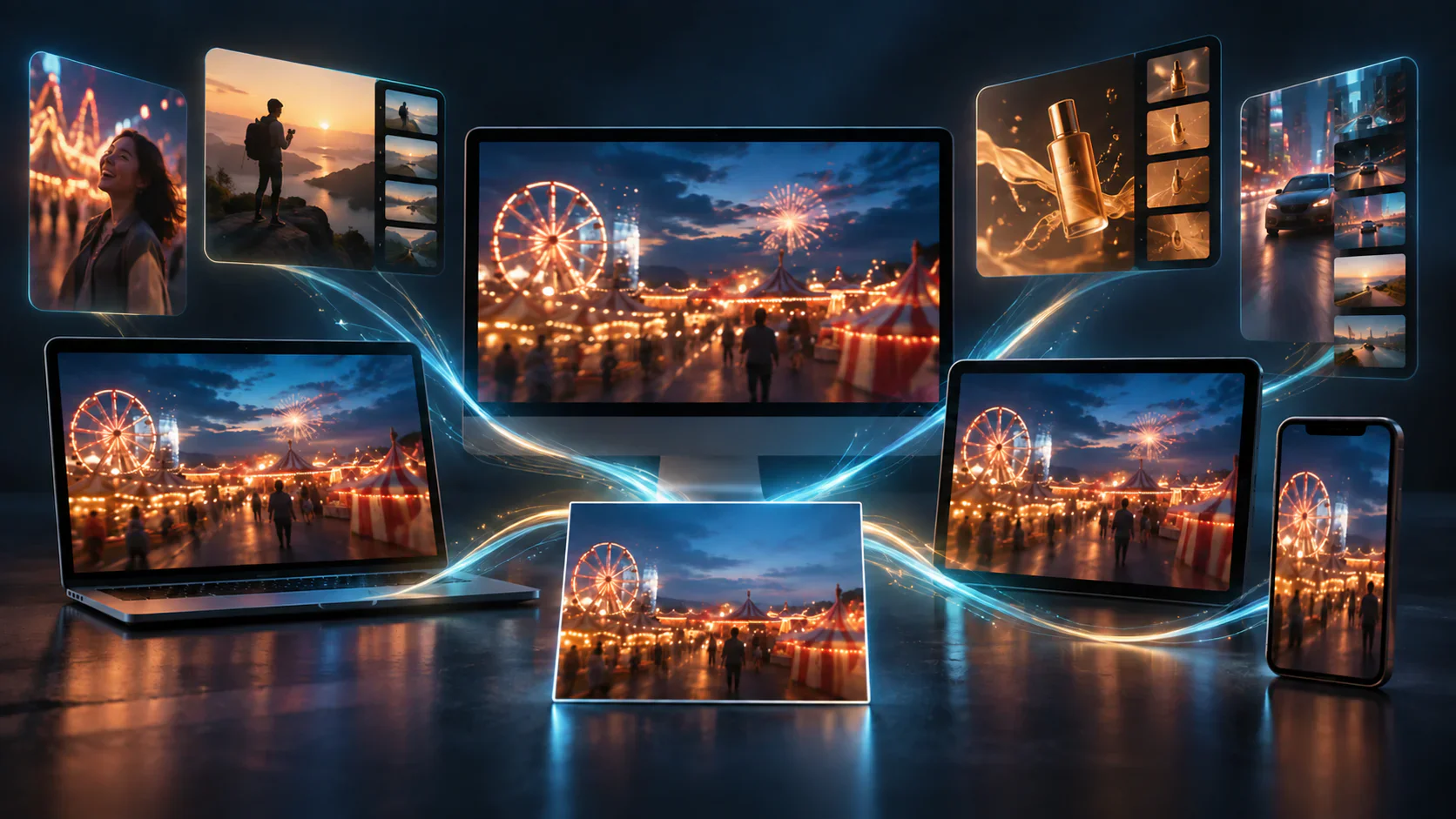
All five tools have a first-party web entry point. Native access and feature availability vary by provider, and a device listing does not prove image-to-video feature or plan parity with the web product.
Web (browser-based)
Viggle, Pika, Kling, Runway, and Flova have first-party web entry points. Flova’s official material supports browser-based creation; it should be described as a web application rather than a confirmed native mobile or desktop app. Runway’s documentation recommends desktop or laptop use for the full experience, and its Gen-4.5 page currently lists Web as the model platform.
Android
Viggle, Kling, and Runway have official Android availability. Pika’s official Android consumer-video app was not verified in this review. Flova does not have an official Android release substantiated by the reviewed official pages. Availability of a mobile app does not confirm the same models, credit terms, watermark behavior, or image-to-video features as the web version.
iOS
Viggle, Kling, and Runway have official iPhone availability. Pika has an official iPhone app published by Mellis, Inc. Flova’s reviewed official pages do not substantiate a native iOS release. Readers should check the live store listing and the in-app creation screen for availability in their region and account.
Desktop (installed software)
Kling has official Windows and Mac desktop downloads. A standalone Windows or Mac client was not verified for Viggle, Pika, or Runway; browser use on a desktop or laptop is verified for those tools. Flova’s official site supports browser-based creation, but a downloadable Windows or Mac client was not substantiated.
A free download is not the same as unlimited free generation. Mobile and desktop features may be metered separately by credits, allowances, models, and subscription terms. Verify the current creation screen and export preview on the device you intend to use.
How to Animate a Photo Step-by-Step on a Free Tier
The following six steps are a general workflow. Names, controls, credit costs, resolution settings, and export terms vary by tool and model.
1. Upload Your Source Image
Start with an image you have the right to use. Choose a clear source that makes the subject, intended motion, and important details easy to inspect. If a project involves a recognizable person, brand, or protected material, obtain the permissions required for the intended use.
2. Choose a Motion Template or Write a Prompt
Use the control the selected workflow provides. Viggle can use a motion template or reference video; Kling documents prompts, camera controls, and Motion Control; other tools may use a prompt, storyboard, or model-specific setting. Describe one restrained action and, where available, the camera movement. Do not assume a template costs fewer credits than a prompt unless the product displays that estimate.
3. Set Length and Resolution Within Free Caps
Check the selected model’s duration, resolution, and credit estimate before starting. A plan’s headline resolution does not necessarily apply to every model or free account. Choose the available settings that match the test’s delivery need and keep a credit reserve for revision.
4. Generate the Clip
Submit the generation only after reviewing the displayed inputs, credit cost, and plan requirement. Queue time and availability can change with account status, model demand, and service conditions; this guide does not make a universal priority or wait-time claim.
5. Review and Regenerate if Needed
Watch the complete clip and inspect faces, hands, products, text, reflections, edges, background consistency, contact, gravity, and camera motion. A new generation can consume additional credits or allowance. Record the prompt, model, settings, and source version so that a useful result can be reproduced or revised.
6. Export and Check for Watermarks
Download a test in the exact project you plan to publish. Confirm the account, selected model, and any design assets permit the needed export, watermark treatment, resolution, and commercial use. Flova Free final downloads carry a Flova watermark; Runway Free videos carry a Runway watermark; Pika’s current Free pricing lists no watermark but no commercial license; Viggle’s Free watermark status should be checked in the live account; and Kling’s paid plans list brand-watermark removal.
Choosing an AI Image-to-Video Workflow by Use Case
Use these examples to match a workflow to your project, whether you are creating social clips, marketing assets, filmmaker-style sequences, or quick experiments.
Social Clips
Pika may be worth considering for personal, noncommercial experimentation with its web product or official iPhone app because current Free pricing lists no watermark. The plan is packs only with 0 monthly credits, and a no-watermark export does not include commercial rights. Check the live plan and workflow settings before publishing to a monetized channel.
Marketing and Business Use
Do not select a tool for business use on watermark status alone. Pika Free does not include a commercial license. Flova reserves commercial use and watermark-free export for eligible paid plans. Kling lists commercial use and brand-watermark removal for paid memberships. Viggle and Runway terms and plan conditions should be reviewed for the exact account and project. Use only inputs for which you have the necessary rights.
Serious Creators and Filmmakers
Runway’s Free plan can support limited product evaluation with 125 one-time credits, but Free videos carry a watermark. Gen-4.5 image-to-video requires Standard or higher on Web. A serious production decision should include a representative test of the intended model, duration, export, rights, and revision budget rather than an assumption of cinematic quality.
Hobbyists on a Budget
Viggle’s documented template and reference-video workflow, Pika’s current packs-only Free plan, and limited free-account access at other providers can support experimentation. The practical choice depends on whether the project needs character motion, a particular model, a recurring allowance, an unwatermarked file, or commercial rights. Verify all of those conditions before investing time in a project.
Connected Story and Campaign Production
For connected story and campaign production, Flova combines Agent-led planning, storyboards, shot-linked media, and timeline assembly in one project. New accounts can use credits to explore the workflow, while eligible paid plans add watermark-free export and commercial-use rights for production campaigns.
Free-Tier Limitations and When to Upgrade
Free access is useful for exploring a workflow. Compare each plan's watermark treatment, available models, resolution and duration options, credits, and commercial-use rights before moving a project into production.
Watermarks and Export Rights
Watermark treatment and commercial-use rights are separate plan details. Flova Free final downloads include a watermark, while eligible paid plans offer watermark-free export and commercial-use rights. Pika, Runway, Viggle, and Kling use different plan structures, so choose based on the account and workflow you intend to use.
Resolution and Duration Limits
Avoid a single “free resolution cap” for this group. Flova lists 720p for Free. Kling VIDEO 3.0 documents 720p and 1080p modes, but the membership matrix makes higher-entitlement claims for subscribers. Runway Gen-4.5 is 720p on Standard and higher, not a documented Free-plan promise. Pika’s available settings are model- and workflow-specific. Duration can likewise be model-specific: Flova advertises up to 30 seconds for Seedance 2.5, not a universal Free maximum.
Credit or Allowance Exhaustion
Credits, shared AI allowance, and account eligibility limit how much a free account can create. Runway’s 125 Free credits are one time and do not renew. Pika lists 0 monthly credits and packs only. Viggle lists a limited daily allowance but has conflicting published quantities. Flova’s 300-credit sign-up offer is promotional and subject to campaign terms. Preserve credits for representative tests, and check the displayed cost before using a higher-duration, higher-resolution, or premium model setting.
Upgrading may be appropriate in three situations:
- The project requires an eligible commercial license or a required watermark treatment. Verify that the paid plan expressly covers the intended use; a paid subscription does not guarantee exclusivity or clear every input-rights issue.
- The project needs more volume, a particular model, or a larger revision budget than the current free account provides. Compare the current allowance, credit packs, and plan terms instead of assuming every paid tier offers the same capacity.
- The project needs a documented resolution, duration, or production control that is unavailable in the tested free workflow. Upgrade only after the representative source image and motion brief have proven the desired result.
Free access can still be appropriate for a limited, permitted test. Do not rely on cropping, hiding, or removing a watermark as a workaround for plan terms or license restrictions.
Frequently Asked Questions
Which AI image-to-video app is genuinely free with no watermark in 2026?
Choose a Free plan based on the project you want to make. Pika's Free plan uses credit packs and excludes commercial use; Runway Free videos include a watermark; Flova Free final downloads include a watermark, while eligible paid plans offer watermark-free export and commercial-use rights.
Is there a free AI image-to-video app for Android?
Viggle, Kling, and Runway have official Android availability, and each has plan- and feature-specific conditions. Pika’s official Android consumer-video app was not verified in this review, although Pika has a web app and official iPhone app. Flova is browser-based; official Android and iOS apps were not substantiated by the reviewed official sources. Mobile availability does not establish feature parity with web.
Can you get unlimited free AI image-to-video generation?
Do not assume unlimited free generation. Runway’s Free credits do not renew after they are spent; Pika’s Free plan lists 0 monthly credits and packs only; Viggle lists a limited daily allowance; and Flova’s displayed sign-up credits are promotional. A provider can change credit, model, and account rules, so check the live plan page and creation screen.
Do free AI image-to-video apps require a sign-up or download?
Requirements vary. A web product may require an account before generation even though it does not require a download. Native mobile access requires a supported store installation where one is officially available. Flova is documented as browser-based, while Viggle, Kling, and Runway have official mobile apps; Pika has an official iPhone app. Confirm the current sign-in and feature requirement in the selected product.
How is a free tier different from a free trial for these apps?
A free account can remain available without a subscription, but its generation allowance may be recurring, promotional, packs-only, or absent. A trial generally gives temporary access to paid features or a limited trial allocation. Runway’s Free plan is neither a recurring allowance nor a conventional time-limited trial: it provides 125 one-time credits that do not expire or renew. Read the provider’s current credit and renewal terms before treating any offer as ongoing.
What's the best free app to turn a photo into a talking video?
For talking-photo projects, choose a workflow that accepts the portrait and audio inputs you need. Flova combines image-to-video creation with an OmniHuman-powered lip-sync Skill for uploaded music, while Viggle focuses on character animation driven by motion templates or reference video. Review lip sync, facial stability, export options, and credit use with your own source material.
How long and what resolution are the videos on free image-to-video tiers?
Video length and resolution depend on the model, account, and plan. Flova lists 720p for Free, Runway's Gen-4.5 offers 2- to 10-second 720p clips on Standard and higher, and Pika's Seedance 2.5 API offers 4- to 30-second clips at 480p to 1080p.
What is Flova AI best for?
Flova is designed for Agent-led planning, storyboarding, shot-linked media, and timeline assembly across multi-scene projects. It is well suited to projects that need organized planning and shot context rather than a single generated clip. New accounts can explore the workflow with credits; eligible paid plans add watermark-free export and commercial-use rights.